When a person uses their wearable device or cycling computer to record their activities, chances are that data is stored in a FIT Activity file. FIT Activity files are also a common format used by web APIs to transfer activity data between fitness platforms. This makes FIT Activity files the most common of all FIT file types.
This recipe covers:
The example project used in this recipe is a C# console app written with .NET Core. All example projects in the FIT Cookbook use Visual Studio Code and can be compiled and executed on Windows, Mac, and Linux systems. A guide for using the example projects in this cookbook can be found here. The source code for this and other recipes is included with the FIT SDK and is located at /path/to/fit/sdk/cs/cookbook.
Activity files are used to store sensor data and events recorded by devices and apps during an active session. This includes GPS location data and sensor data from heart rate monitors, stride sensors, power meters, etc. Activity files may also include information about the course followed, structured workout performed, training targets & zones, and user profile data. Data found in Activity files may be manufacturer-, device-, or sport-specific. Activity files may be recorded in real time by devices or they may be used as a way to share data between platforms. See the Activity File description for additional information on FIT Activity files.
The steps to create a FIT file are the same regardless of the type of FIT file being created. The difference between each file type is the specific message types written to the file.
The following steps are used to create a FIT file of any type using the FIT SDK. Steps 1–4 and 6–7 are the same for every FIT file, whereas the messages used in step 5 are specific to the type of file being created. Each FIT file type has a list of required messages that should be included in every file. For Activity files, step 5 also includes writing messages to the file in a specific sequence.
This recipe’s example project implements these steps as follows:
// 1. Create the output stream
FileStream stream = new FileStream("/output/path/filename.fit", FileMode.Create, FileAccess.ReadWrite, FileShare.Read);

// 2. Create an instance of an Encode object.
Encode encoder = new Encode(ProtocolVersion.V20);

// 3. Write the FIT header to the output stream.
encoder.Open(stream);

// 4. Write a File Id message to the output stream
var fileIdMesg = new FileIdMesg();
fileIdMesg.SetType(Dynastream.Fit.File.Activity);
fileIdMesg.SetManufacturer(Manufacturer.Development);
fileIdMesg.SetProduct(ProductId);
fileIdMesg.SetSerialNumber(DeviceSerialNumber);
fileIdMesg.SetTimeCreated(startTime);
encoder.Write(fileIdMesg);

// 5. Write messages specific to the file type to the output stream
.
.
.

// 6. Update the data size in the header and calculate the CRC
encoder.Close();

// 7. Close the output stream
stream.Close();
Activity files have both required messages and messages that are optional but commonly included. The required message types for an Activity file are File Id, Activity, Session, Lap, and Record messages. Device Info and Event messages are not required, but it is considered a best practice to include them. Other common message types include the User Profile and Length messages. Activity files should include all of the required message types, as these messages are expected by platforms that process Activity files. If a required message is missing from the file, then that file may behave unexpectedly or may even cause an error during decoding. Optional message types may be included to provide additional information about the active sessions.
See the Activity File description for the list of required and optional messages types and the required fields for each.
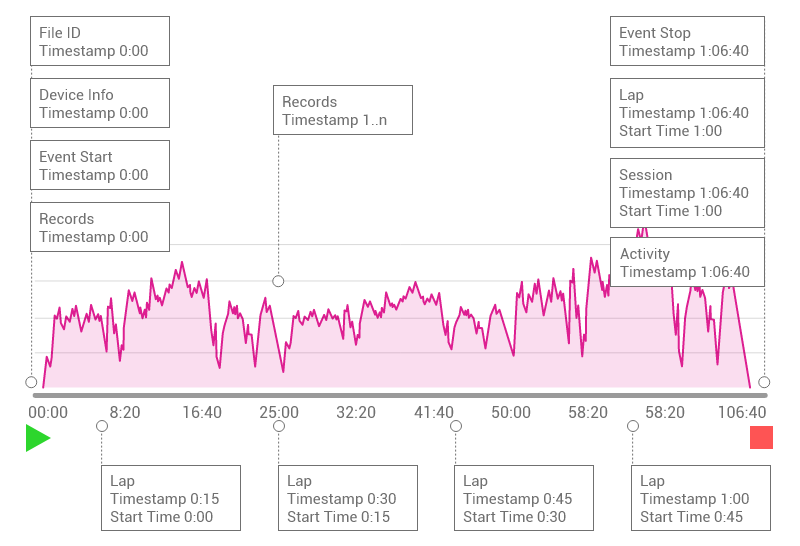
Devices typically use the summary last message sequencing and write messages to the file as they occur. The sequence of messages can be thought of as events on a timeline. The recording of an Activity file begins on a device when the user presses the start button, and ends when the user presses the stop button and saves the activity. While recording, messages are written to the file in the order that they occur. The first messages written to the file are the File Id, Device Info, Event Timer Start, and the first Record message. These initial messages all share the same timestamp. This timestamp represents the start time of the activity, which will also be recorded in the Session message Start Time field. For the duration of the activity, a series of Record, Event, and Lap messages are written to the file in real time. When the user completes the activity, the active Lap, Session, and Activity messages are written to the file.
The typical message sequence for a single-sport activity using the summary last message pattern looks like this.
See the Activity File description for an example sequence of messages for a multi-sport activity.
Time-based activities include running, hiking, cycling, yoga, strength, open water swimming, etc. For these activity types, Record messages are used to store the instantaneous GPS location and sensor data for the activity. This includes data like heart rate, power, cadence, elevation, temperature, latitude, longitude, etc. For time-based activities, Record messages can be written to the file at a regular interval such as every 1, 5, 10, or 30 seconds. Alternatively, they can be written to the file in irregular intervals, an approach known as Smart Recording.
Time-based Activity files use Event messages to indicate that the device timer is running and the device is recording data. These start and stop timer events help to remove the ambiguity between the recording rate of the data and pauses in the recording of the data.
It is a best practice to include timer start and stop events in all Activity files. A timer start event should occur before the first Record message in the file, and a timer stop event should occur after the last Record message in the file when the activity recording is complete. Timer stop and start events should be used anytime the activity recording has been paused and resumed. Record messages should not be encoded to the file when the timer is paused.
This recipe’s example project demonstrates creating an Activity file containing messages representing 60 minutes of activity recording. All of the required messages are included in the file, and all the best practices are followed. Although the data is made up, the use of each message and the sequence of messages are typical of a real application.
The example project for this recipe also demonstrates the use of Developer Data Fields to add custom data to the Record and Session messages. See the Working With Developer Data Fields recipe for an explanation of how to encode and decode developer fields from Activity files.
Pool swimming is an event-based activity where each length of the pool that the user swims is recorded to the Activity file as an event. With pool swim activities, the length of the pool is a constant and the recording rate of the messages is variable.
Many wearable devices use built-in accelerometers to detect flip and open turns while lap swimming. This allows devices to track the number of lengths of the pool that have been covered, track total distance of the swim activity, and calculate the average pace for each length and the overall activity. More advanced wearable devices will use the accelerometers to detect stroke type, count the number of strokes, and provide a drill mode for kick sets and other swim drills.
Activity files for pool swim activities use Length messages to record information about each length of the pool the user swims. Length messages are used to store the start time, elapsed time, stroke count, and stroke type for each length of the pool that was covered. Length messages are also used to track idle periods between active sets. Lap messages are used to group sets of active and idle Length messages. The length of the pool is a constant and is stored in the Session message. It is implied that the distance represented by each Length message is the value of the pool_length field in the Session message. The pool length should be specified in meters, with the pool_length_unit field providing the corresponding units which are either metric for meters or statute for yards.
sessionMesg.SetPoolLength(22.86f); // 25 yards
sessionMesg.SetPoolLengthUnit(DisplayMeasure.Statute);
Activity files for pool swim activities are interpreted differently by each platform that consumes FIT files. Because of this, it is important to create a robust Activity file by providing values for all of the fields in the Length, Lap, and Session messages related to pool swim activities. The fields related to pool swim activities for each message are:
Length
Lap
Session
Length and Lap messages are summary types, and the Total Elapsed Time and Total Timer Time fields are required messages. For pool swim activities, both of these fields should be set to the same value. Length messages with with the Type field set to LengthType.Idle are used to record rest time in between active sets.
Since not every platform that consumes Activity files will make use of Length messages, it is a best practice to pair a Record message with each Length message. The Record message should share the same timestamp as the Length message and contain the average speed (pace), average strokes per minute (cadence), and current distance. Additional Record messages may be included in the file to record heart rate data for the activity.
Record
Pool swim activities often include drills meant to improve technique, form, or strength. Drills may include kicking or single-arm activities where it is difficult to detect turns, stroke type, and stroke rate. For this reason, swim devices may implement a drill mode feature. Drill mode is typically implemented using a timer that tracks the duration of the drill set and a prompt that allows the user to manually enter the distance covered. In drill mode, it is assumed that the person was moving at a constant pace.
Drills sets are represented in Activity files using Length messages with the SwimStroke field set to SwimStroke.Drill. Since Length messages represent a fixed distance and a variable duration, multiple Length messages may be required to record a drill set.
Activity files for pool swim activities use the summary last message sequence. The summary last message sequence follows the timeline of events that occur while lap swimming. An active Length message is written to the file for each length of the pool that the users swims. An idle Length message is used to record rest periods between active sets. Lap messages are used to group active and inactive sets of lengths. As a best practice, a Record message is paired with each Length message.
The following is an example sequence of messages corresponding to a person swimming four lengths of a pool and then resting. Additional Record messages may be included in the file to record heart rate data for the activity.
The example project that accompanies this recipe demonstrates creating an Activity file for a pool swim activity using the summary last message sequence. All of the required messages are included in the file and all best practices are followed. A series of Length, Record, and Lap messages are written to the file representing a 500-yard pool swim. Although the data is made up, the use of each message and the sequence of messages are typical of a real application.